How to Automate Invoices Into Your Accounting Software (With the Exact Prompt)

On this page
Every business receives invoices, and almost every business still types them in by hand. Someone opens the PDF, reads the vendor name, copies each line item, retypes the quantities and prices into QuickBooks, double-checks the total, and moves on to the next one. It's slow, it's repetitive, and it's exactly the kind of work that quietly eats hours out of every week.
This guide shows you how to automate that entire flow with an AI agent. You upload or forward an invoice, the agent reads it, extracts the vendor, line items, dates, and pricing, and creates the record directly in your accounting software, no manual data entry. We use QuickBooks throughout because it's the most popular choice, but the same agent fits Xero, Sage, Zoho Books, NetSuite, and virtually any other tool.
TL;DR
- The agent reads a PDF or photographed invoice using a vision-capable model like Claude
- It extracts the vendor/customer name, invoice date, due date, and every line item (description, quantity, unit price)
- It calls your accounting software's API to create the invoice automatically
- It confirms back the new invoice number, the total, and a link to view it
- We use QuickBooks as the example, but it works with any accounting or ERP system
- The full agent prompt is included below, ready to copy
The Problem With Manual Invoice Entry
Manual invoice processing isn't just slow, it's error-prone in ways that cost real money. A transposed digit turns $1,730 into $1,370. A missed line item understates a bill. A due date typed wrong triggers a late fee or an early payment. And because the work is boring, it's often the first thing that gets deferred, which is how finance teams end up with a backlog of unentered invoices at month-end.
The traditional fix is OCR (optical character recognition), but OCR only reads text, it doesn't understand it. It can pull the characters off the page, but it can't reliably tell which number is the quantity, which is the unit price, and which is the line total, especially when every vendor uses a different layout. That's why so much "automated" invoice software still needs a human to map fields and correct mistakes.
An AI agent closes that gap. It reads the invoice the way a person would, understands what each value means, and then takes the action of creating the record in your accounting software. Reading plus understanding plus doing, end to end. If you're new to the concept, our guide on what AI agents actually are is a good primer.
How the Invoice Agent Works
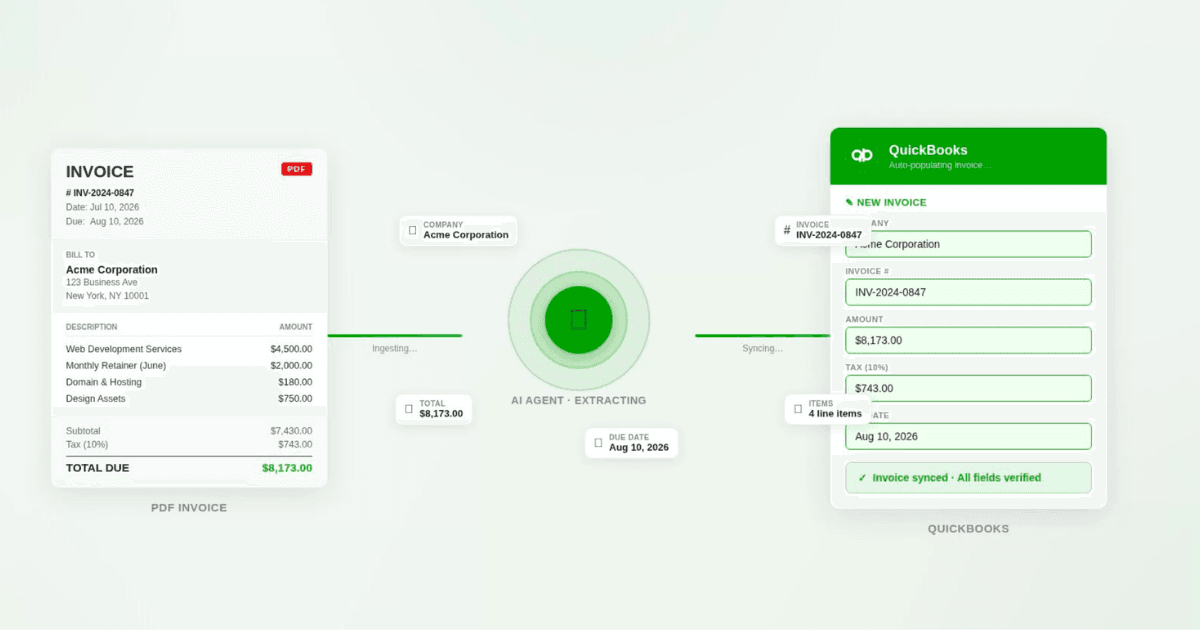
The agent that powers Talk to Me Data's invoice processing follows three simple steps. The screenshot at the top of this article shows it in action: a PDF invoice on the left, the agent extracting fields in the middle, and a fully populated QuickBooks invoice on the right, all fields verified.
Step 1: Read the invoice
You upload the invoice image or PDF (or forward it to a dedicated inbox). The agent reads it and extracts the customer or vendor name, the invoice date, the due date if present, and every line item with its description, quantity, and unit price. Because it uses a vision-capable model, it handles typed PDFs, scans, and phone photos alike, regardless of the vendor's layout.
Step 2: Create the invoice
The agent calls your accounting software's "create invoice" action, passing the customer name and the structured line items, plus the invoice and due dates. In our example that action is quickbooks_create_invoice, but the equivalent exists for Xero, Sage, Zoho, and others. The record is created natively in your system, exactly as if a person had typed it.
Step 3: Review and submit
The final check is yours. You go into your accounting software, verify the details the agent filled in (the vendor, dates, line items, and total) and, once everything looks right, simply hit Submit. The agent also flags anything it was unsure about, so you know exactly where to look instead of re-checking every field.
Why QuickBooks, and Why It Doesn't Matter
We built the example around QuickBooks because it's the accounting software most small and mid-sized businesses already run, so the fewest people have to translate the steps. But nothing about the approach is QuickBooks-specific.
The agent's job is always the same: read the invoice, structure the data, and call a "create invoice" action. The only thing that changes between platforms is that final integration. Swap quickbooks_create_invoice for your platform's equivalent and everything else in the prompt stays identical. That's why the same agent comfortably serves teams on QuickBooks, Xero, Sage, Zoho Books, FreshBooks, or a full ERP like NetSuite.
Watch the step-by-step guide
Prefer to follow along? This short walkthrough shows the invoice agent reading a PDF and creating the record in the accounting software, end to end.
The Prompt
Here's the exact prompt behind the agent. Paste it into your AI agent orchestration interface, whether that's Talk to Me Data or a Claude Project with your accounting integration connected. If you're using a different accounting tool, replace the QuickBooks action name in Step 2 with your platform's create-invoice action.
You turn a photographed paper invoice into a QuickBooks invoice. The user uploads an image with their message.

STEP 1 - READ THE IMAGE
Extract: the customer/client name, invoice date, due date if shown, and every line item (description, quantity, unit price).

STEP 2 - CREATE THE INVOICE
Call quickbooks_create_invoice with the customer name and the line items (description, quantity, unit_price), plus invoice_date/due_date if present.

STEP 3 - CONFIRM
Report the new QuickBooks invoice number, the total, and the view link. If anything on the invoice was unclear, say what you assumed.
What You Need to Set It Up
A vision-capable model
The agent needs a model that can read images, such as Claude with tool use enabled. This is what lets it read a PDF or photographed invoice rather than needing clean, pre-typed text.
Your accounting software's API access
A connection to QuickBooks (or your platform) so the agent can create invoices. This is the integration that exposes the create_invoice action the prompt calls.
A way to send invoices in
Either upload images directly in the chat, or wire up a dedicated email inbox so forwarding an invoice triggers the agent automatically. The second option is what most finance teams end up using day to day.
Don't want to wire up API keys and integrations yourself?
Talk to Me Data builds, connects, and hosts this agent for you, including the QuickBooks (or other accounting) integration, model access, and monitoring. Nothing to configure or maintain on your side.
See the invoice processing agent →What You Get Out of It
| Before (manual) | After (AI agent) |
|---|---|
| Open each PDF and read it by hand | Agent reads any format automatically |
| Retype vendor, dates, and every line item | Fields extracted and structured instantly |
| Manually create the record in QuickBooks | Invoice created via API, natively |
| Re-check the total, hope you didn't fat-finger it | Total recalculated and verified, assumptions flagged |
| Minutes per invoice, backlog at month-end | Seconds per invoice, no backlog |
How to automatically have your invoice data in the system by just taking a photo of it
That is the whole promise: to automatically have your invoice data in the system by just taking a photo of it. Snap a picture of any invoice on your phone and the agent reads it, structures every field, and sends the data straight into your accounting software, no manual typing, no rigid template, no OCR cleanup. You take the photo, the agent prepares the record, and all that is left for you to do is review and submit. It is the fastest way to get from a paper or PDF invoice to a clean entry in QuickBooks, Xero, Sage, or whatever you run.
See the agent
Learn More
See exactly how the AI invoice processing agent works, what it connects to, and how we build it for your stack.
Ready to go
Sign up free
Tell us your accounting software and we'll build, connect, and host your invoice agent, live in days.
Summary
Automating invoices into your accounting software used to mean brittle OCR and a human babysitting every mapping. An AI agent changes that. It reads the invoice, understands the vendor, dates, and line items, creates the record in QuickBooks (or any other tool), and confirms the result, flagging anything it wasn't sure about.
The prompt above is ready to use. Connect a vision-capable model and your accounting integration, drop the prompt in, and start forwarding invoices. If you'd rather skip the setup entirely, we build, connect, and host the whole thing for you.
Frequently Asked Questions
Which accounting software does the AI invoice agent work with?
What invoice formats can it read?
Does it extract line items or just the total?
How accurate is the data extraction?
Can Talk to Me Data build and host this agent for me?
Is this different from the OCR built into my accounting tool?
Keep reading